Real ContractorRise screens, from the office cost review to the next task on a phone. Open any screenshot to inspect the application in more detail.
The screens use fictional customers, projects and amounts in a local demonstration environment. They show the application interface, not a customer’s private records. Financial access depends on accounting permissions and company setup.
Review the costs recorded against a job
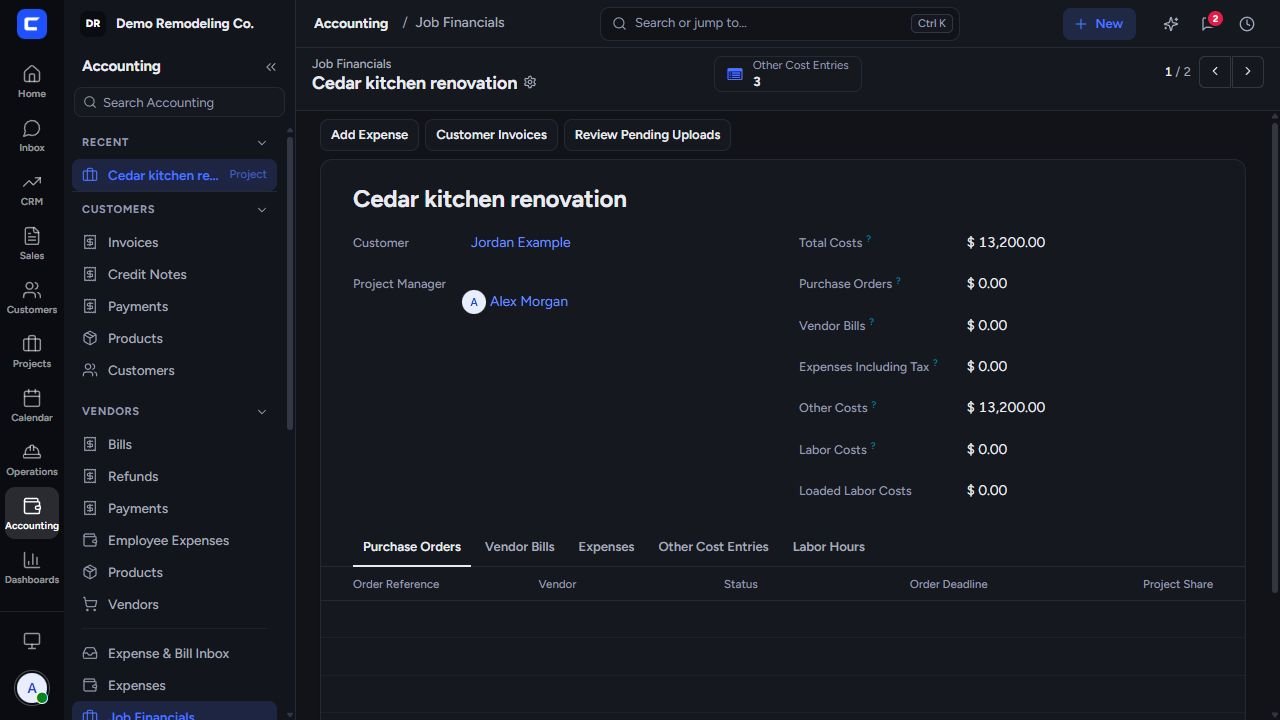
Open Accounting, then Job Financials, and select a project. Review Total Costs and the available breakdown. In this example, three recorded cost entries add up to $13,200. Open the underlying entries to see what contributes to the figure.
Actual application. Fictional demonstration records. Open image for full detail.
Trace the total to the entries
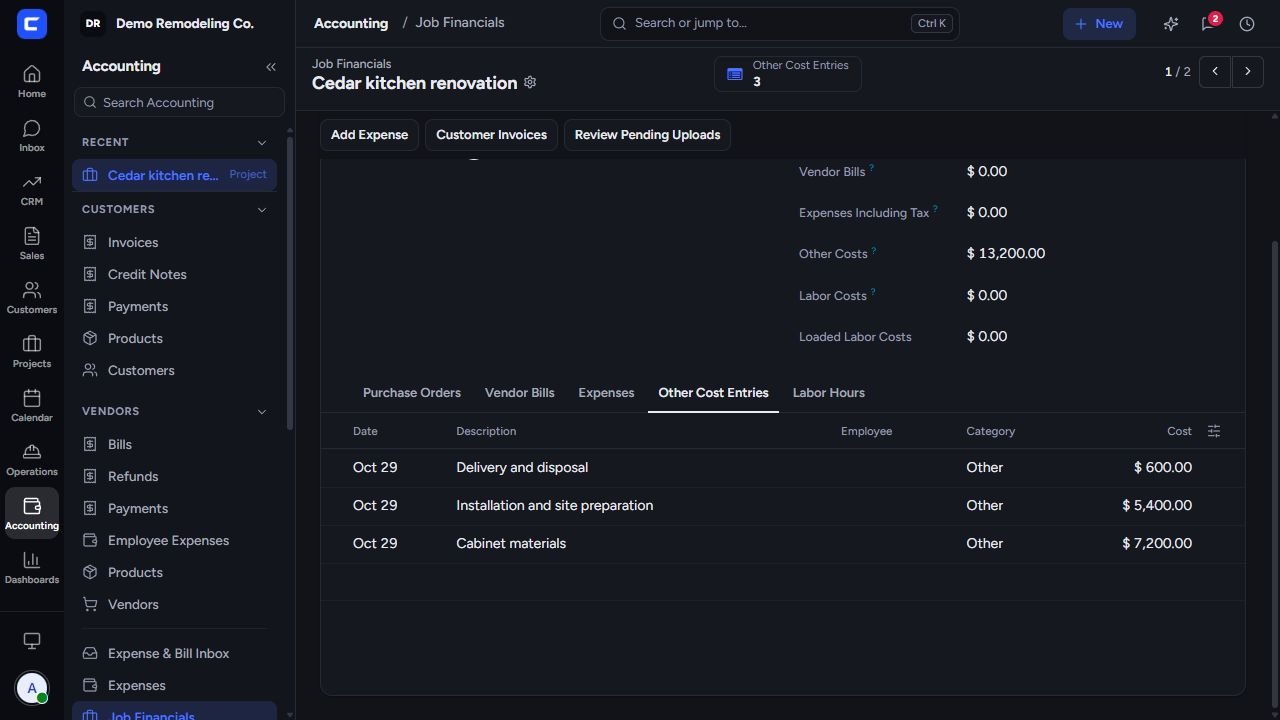
The example contains $7,200 for cabinet materials, $5,400 for installation and site preparation, and $600 for delivery and disposal. These are demonstration records. Purchase commitments and recorded expenses must be reviewed separately; a cost total is not the final profit on a job.
Actual application. Fictional demonstration records. Open image for full detail.
Open customer work from a phone
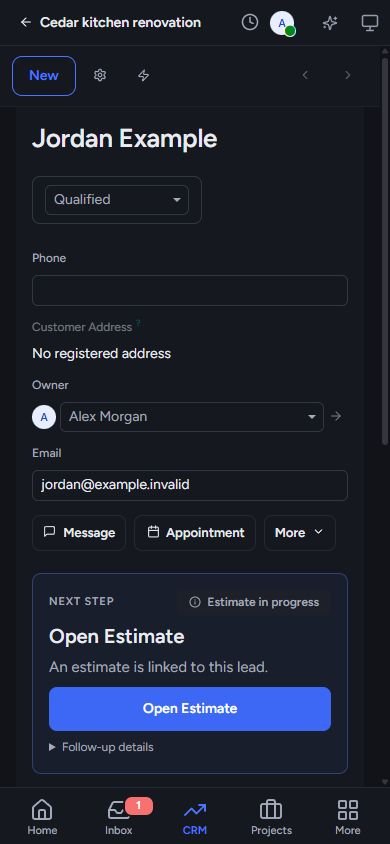
Use ContractorRise in a phone browser to open the CRM and review a customer opportunity. The example shows the Cedar kitchen renovation and its next work context. What a team member can see depends on their assigned role and company access.
Actual application. Fictional demonstration records. Open image for full detail.
Bring the next project task into view
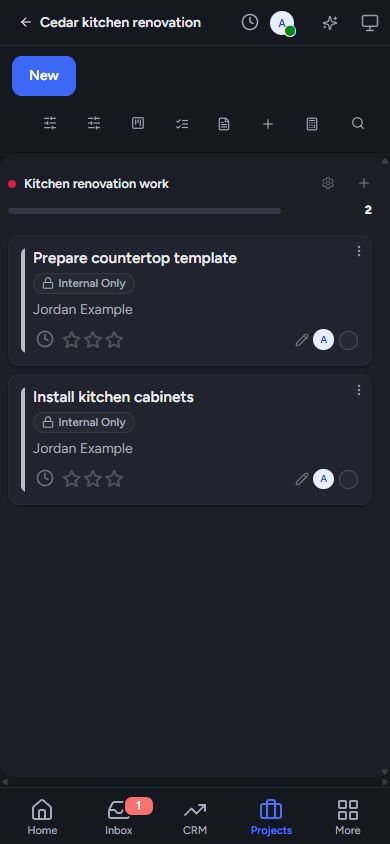
Open Projects and select the job to review its tasks in a phone browser. Here, the team can see cabinet installation and countertop preparation work. Confirm the roles and project access your field team needs.
Actual application. Fictional demonstration records. Open image for full detail.
Yes. The screenshots were captured from a running ContractorRise application with fictional demonstration records. They are not interface mockups. The displayed names and financial amounts are examples.
Does this show automatic budget versus actual?
The financial example demonstrates recorded job costs and their underlying entries. A complete automatic comparison of an original budget with actual labor, materials and subcontractor costs is a separate workflow to confirm with your company configuration.
Can everyone see the financial screens?
No. Accounting permissions and company setup control financial access. Confirm the roles and workflows needed by your office and field team.
From the first call to the paid invoice.
One program for the whole job, and one price for the whole company, with unlimited users.